ADBuddy
Let any coding agent manage your Android phone over Wi-Fi adb, with every command ranked, journaled and the risky ones confirmed.
Set up your phone for ADBuddy
ADBuddy talks to your phone over wireless debugging, a developer option built into Android 11 and newer. You turn it on once; after that the PC finds the phone by itself on your Wi-Fi.
Keep adbuddy setup running on the PC while you follow these steps.
1. Turn on Developer options
- Open Settings → About phone.
- Tap Build number seven times. The phone may ask for your PIN.
- You will see “You are now a developer!”.
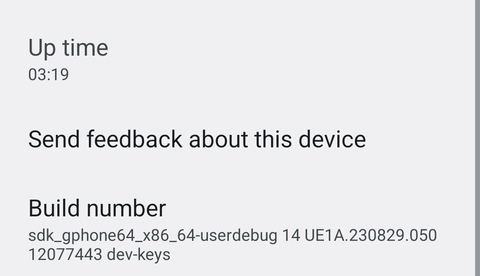
On some phones Build number is under Settings → About phone → Software information.
2. Turn on Wireless debugging
- Open Developer options: on a Pixel it is in Settings → System → Developer options; on other phones it is usually at the end of Settings.
- Turn on Wireless debugging.
- When the phone asks “Allow wireless debugging on this network?”, tick Always allow on this network and tap Allow. This network becomes a trusted network: the phone reconnects on it by itself.
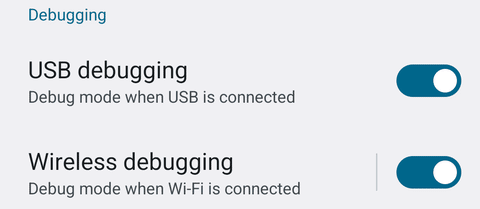
The phone and the PC must be on the same Wi-Fi network.
3. Pair with the QR code
adbuddy setup shows two QR codes. The first one opens this guide and is scanned with the camera. The one to pair with is the second QR code, the one shown under “On the phone: Wireless debugging → Pair device with QR code, and scan:”.
- Tap the words Wireless debugging (not the switch) to open its screen.
- Tap Pair device with QR code.
- Scan the second QR code with the scanner that opens on the phone, not with the camera app.
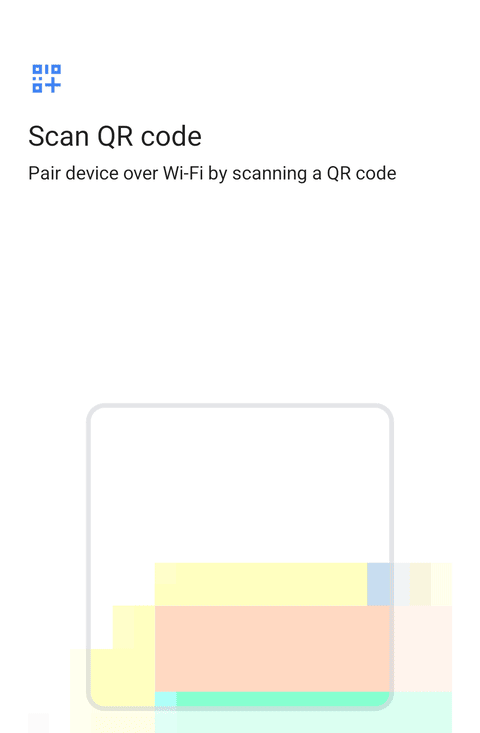
The phone shows the PC in Paired devices and the terminal says “Paired”.
You have about 3 minutes from the moment the second QR code appears.
If the QR code does not work
Run adbuddy setup --code instead:
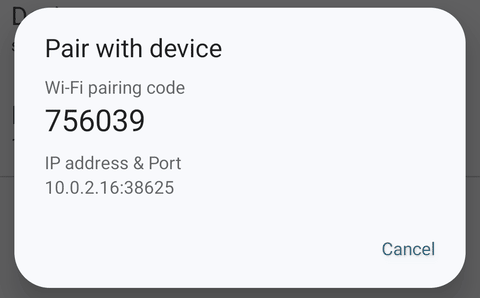
- On the phone, tap Pair device with pairing code. Keep that popup open until the terminal says “Paired”: closing it cancels the code.
- Type into the terminal the IP address & Port and the 6-digit Wi-Fi pairing code shown inside that popup, not the IP address and port on the main Wireless debugging screen.
If the phone is on another network (Tailscale)
The QR code only works on the same network. Over Tailscale, or on a Wi-Fi that blocks mDNS:
- Run
adbuddy setup --codeand pair as above: with Tailscale on, the pairing popup shows the phone’s Tailscale IP. - When setup asks for the Connection address, type the IP address and port on the main Wireless debugging screen (or pass it up front:
adbuddy setup --code --connect <ip:port>). - The port changes every time wireless debugging is turned on again. When
adbuddy servecannot reach the phone, runadbuddy connect <new ip:port>with the address the phone shows now.
Troubleshooting
- “No phone with wireless debugging is visible on this network”: while the QR code waits, the PC sees no phone with wireless debugging at all. If the phone is on another network (for example Tailscale) or the Wi-Fi blocks mDNS, press Ctrl+C and run
adbuddy setup --code(see above). - The phone never shows up: check that both are on the same Wi-Fi, that wireless debugging is still on (Android turns it off when you change network unless the network is trusted) and that the network does not isolate its clients (guest networks often do).
- Setup timed out (
PAIRING_TIMEOUT): the phone has about 3 minutes to scan the QR code from the moment it appears. Runadbuddy setupagain; it skips what is already done. - “Wrong password”: the pairing code changes every time the popup opens; use the current one.
protocol faultwhen pairing with a code: the popup closed before pairing finished. It also closes when you switch to another app to copy the code. Keep it open, type the code from the PC (or from another device), or open it again for a new code.- Windows asks about the firewall: allow adb (Android’s debugging tool, which ADBuddy downloads) on private networks; it only talks to devices on your Wi-Fi.
What happens next
After “Paired”, adbuddy setup does the rest by itself, in this order. You do not need to type anything unless it asks.
- Connects. It connects to the phone and tries to check that it is the phone you just paired. If it cannot check, it prints a “Note: could not check…” line and goes on. If the phone does not show up by itself, it asks for the address on the Wireless debugging screen.
- Reads the phone’s profile. It prints
Phone: <model>, Android <version>.The profile goes into the agent’s instructions later. -
Installs the ADBuddy app on the phone. Setup installs the app only if the phone does not have it yet, or if you pass
--apk <file>. Setup downloads it from a public release only once there is one, and only if the host knows the project’s signing certificate. Today there is no public release, so setup says it skips the app and goes on. To install the app now, build the APK (Install) and run:adbuddy setup --apk <file>That APK is not signed with the project’s key, so setup trusts that exact file as your development build and says so. After installing, setup checks the app’s signing certificate and its version. If the check fails, it does not set the app up and goes on. Without the app the host still works, but you confirm in the terminal and there is no chat on the phone.
adbuddy setup --no-appskips the app on purpose. - Asks for your consent on the phone. The ADBuddy app opens on the phone with
Set up ADBuddy with <PC name>. It says that, if you accept, the PC will:- give ADBuddy the permission to change secure settings, used to cut and restore the PC’s adb access from the phone;
- exempt ADBuddy from battery optimisation, so the channel with the PC stays open;
- turn on ADBuddy’s accessibility service, keeping any other one you use.
Tap Accept, or Not now. Setup waits up to 5 minutes. If you tap Not now or do not answer, setup goes on without setting the app up, and you can run
adbuddy setupagain later. After you accept, setup printsThe ADBuddy app is ready (version <number>).If one of the three steps failed, it prints “The ADBuddy app is only partly ready” and the warnings above it say which one. - Picks the agent. It looks for Claude Code, Codex, Gemini CLI and OpenCode in your
PATH. If you have several, it asks which one to use.--agent <name>and--yesskip the question. If none is installed, it says how to install one. ADBuddy does not install agents. - Creates the environment. The environment is the folder where the agent works:
~/ADBuddy/<phone name>/. The phone name is the phone’s model in lower case with dashes. The folder holds the agent’s instructions and skills, with the phone’s profile, and the shim (a small stand-in foradbthat ranks every command by risk and journals it). Setup also saves your choices. Then it prints a line that starts with “Ready:”.
You can run setup again, with adbuddy serve stopped. It reconnects, asks for your consent again and rewrites the agent’s instructions and skills (NOTES.md stays). It also turns remote mode off. If the phone you set up before answers on the network, setup finds it (“Found it: already paired.”) and skips the guide and the QR code.
What ADBuddy does with this access
The agent works through ADBuddy’s shim, which ranks each command by risk, writes it to a journal with its undo, and makes the commands it ranks red wait for your confirmation (taps and typing are not asked about). The shim protects against mistakes and prompt injection, not against an agent set on finding another adb: for that, Cut access in the app is the real switch. Setup never asks for or stores your PIN. Safety has the details.
Next: start ADBuddy
-
In a terminal, start the host and keep it open:
adbuddy serveBy default it also starts the agent. Open the ADBuddy app on the phone to chat with it, or run
adbuddy attachin a second terminal. -
If you prefer to run the agent in a terminal of your own, start the host with
adbuddy serve --no-agentand runadbuddy runin another terminal. You lose the chat on the phone.
Use ADBuddy has the details. If something fails, see Troubleshooting. To install or update the host, see Install.